The bOnline mobile app includes a Chat feature for sending instant messages to colleagues within your organisation. This guide explains how to access and start chats in the app.
Please note: Chat is for internal messaging between colleagues only. You can only message other users within your organisation who are also using the bOnline phone system (mobile, desktop, or web app). bOnline does not support sending SMS or text messages to external phone numbers.How to start a chat
- Open the bOnline app on your mobile device.
- Tap the Chat icon on the far right of the bottom navigation bar.

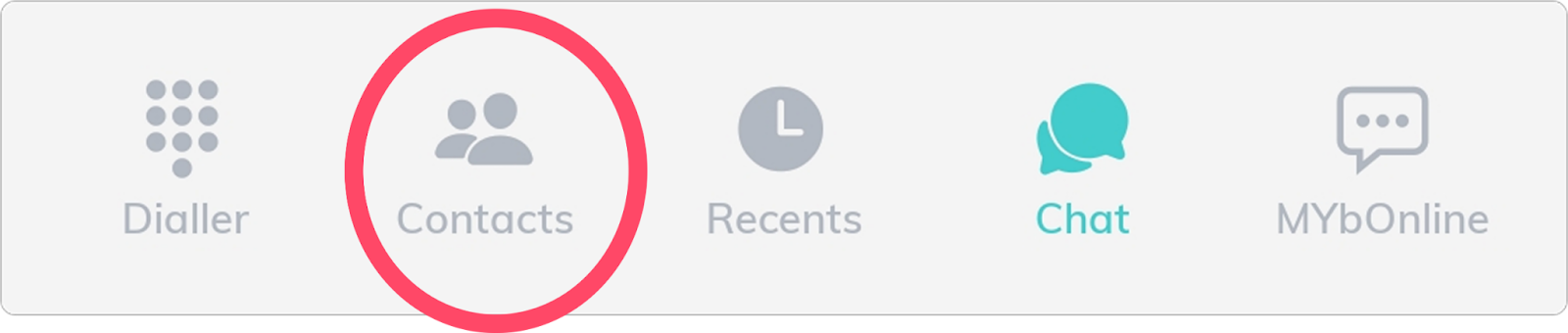
- Tap Contacts at the bottom of the screen to start a new chat.
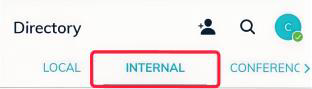
- Select the Team (or Internal) tab to view your colleagues.
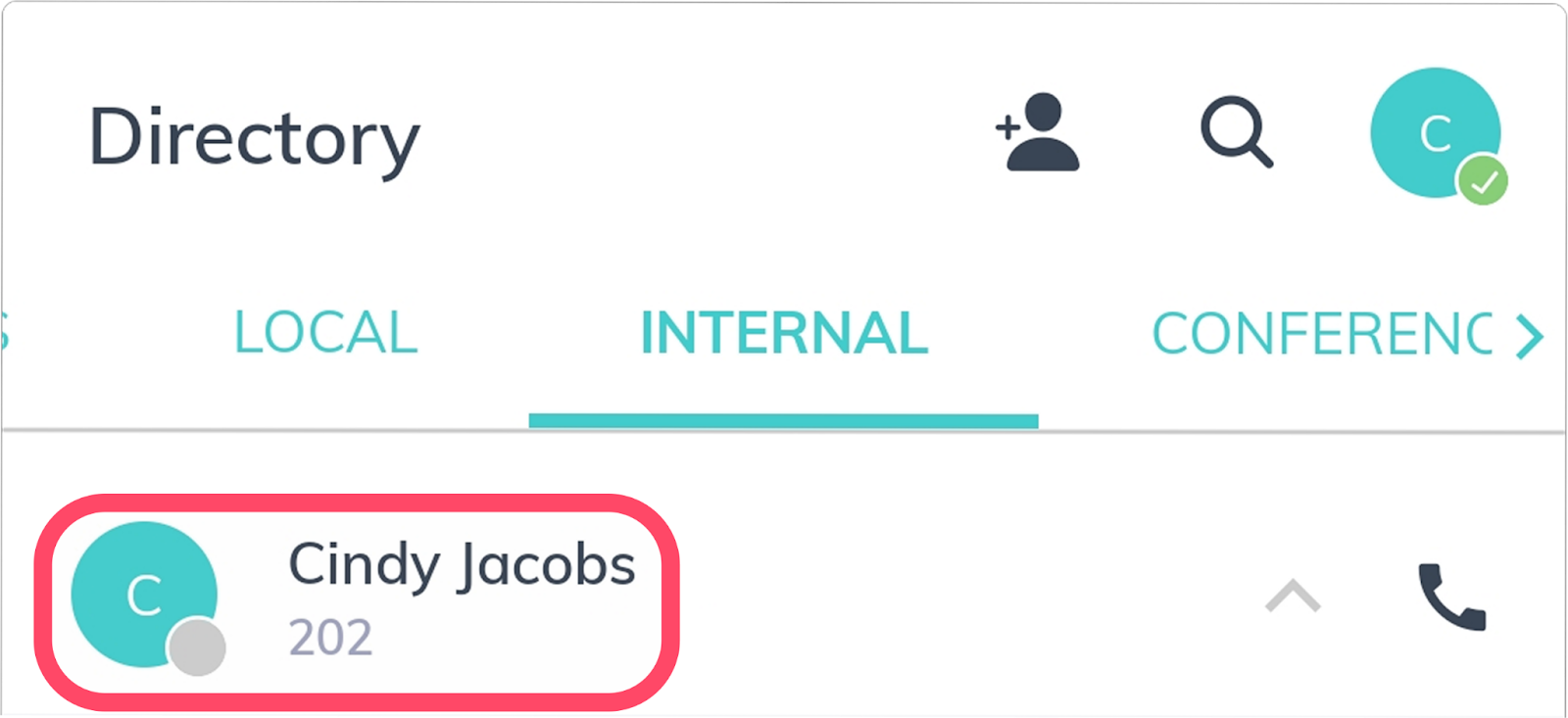
- Tap the name of the person you would like to message.
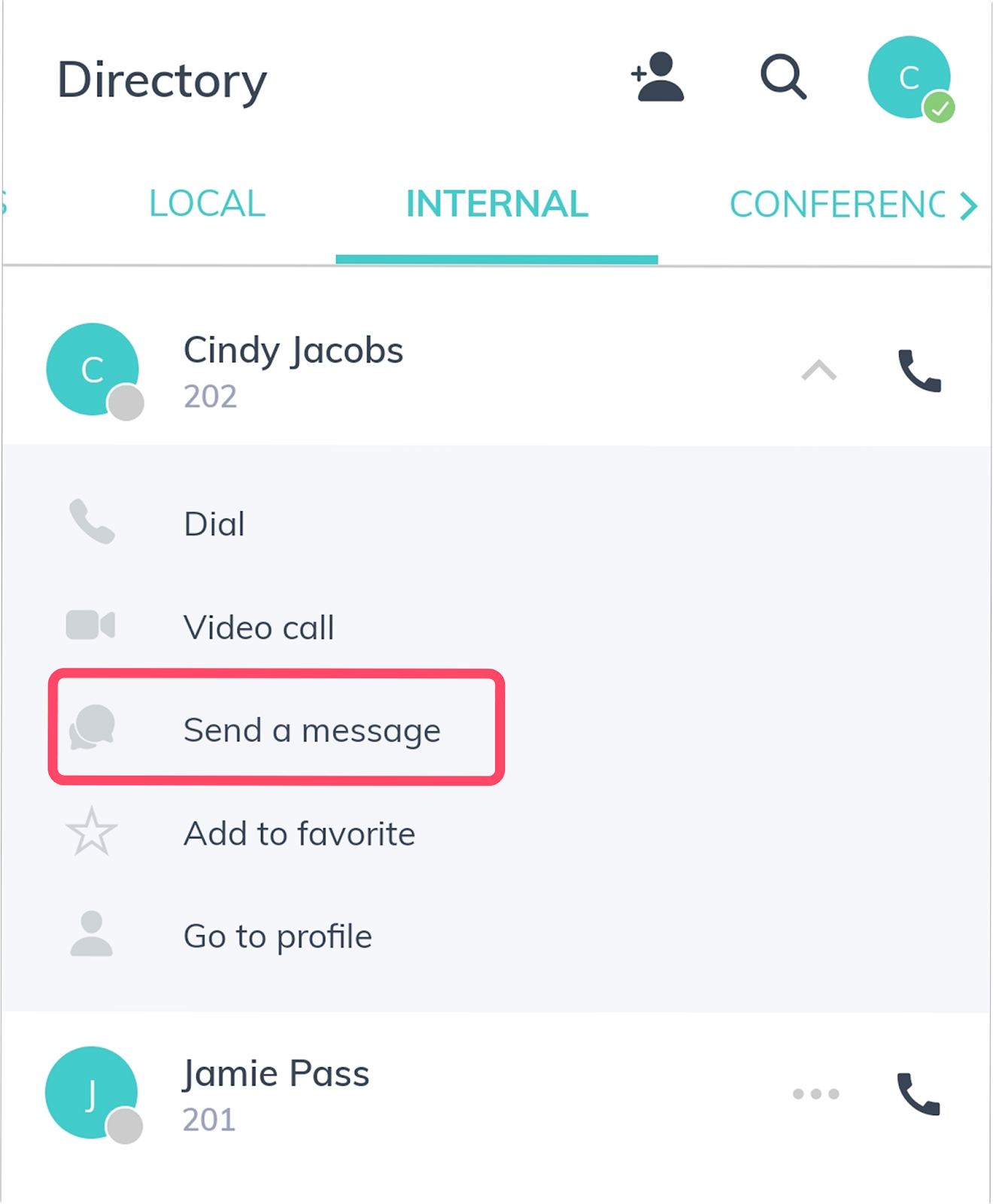
- Select Send a message from the options provided.
Related articles
Was this article helpful?
That’s Great!
Thank you for your feedback
Sorry! We couldn't be helpful
Thank you for your feedback
Feedback sent
We appreciate your effort and will try to fix the article