Before you can provision a Yealink handset with bOnline, the device must be added to your account and a setup string must be generated. This article explains how to do that in MybOnline.
Please note: If the handset was purchased from bOnline, it should already be added to your account automatically.Add a Device to Your Account
- Log in to the MybOnline portal.
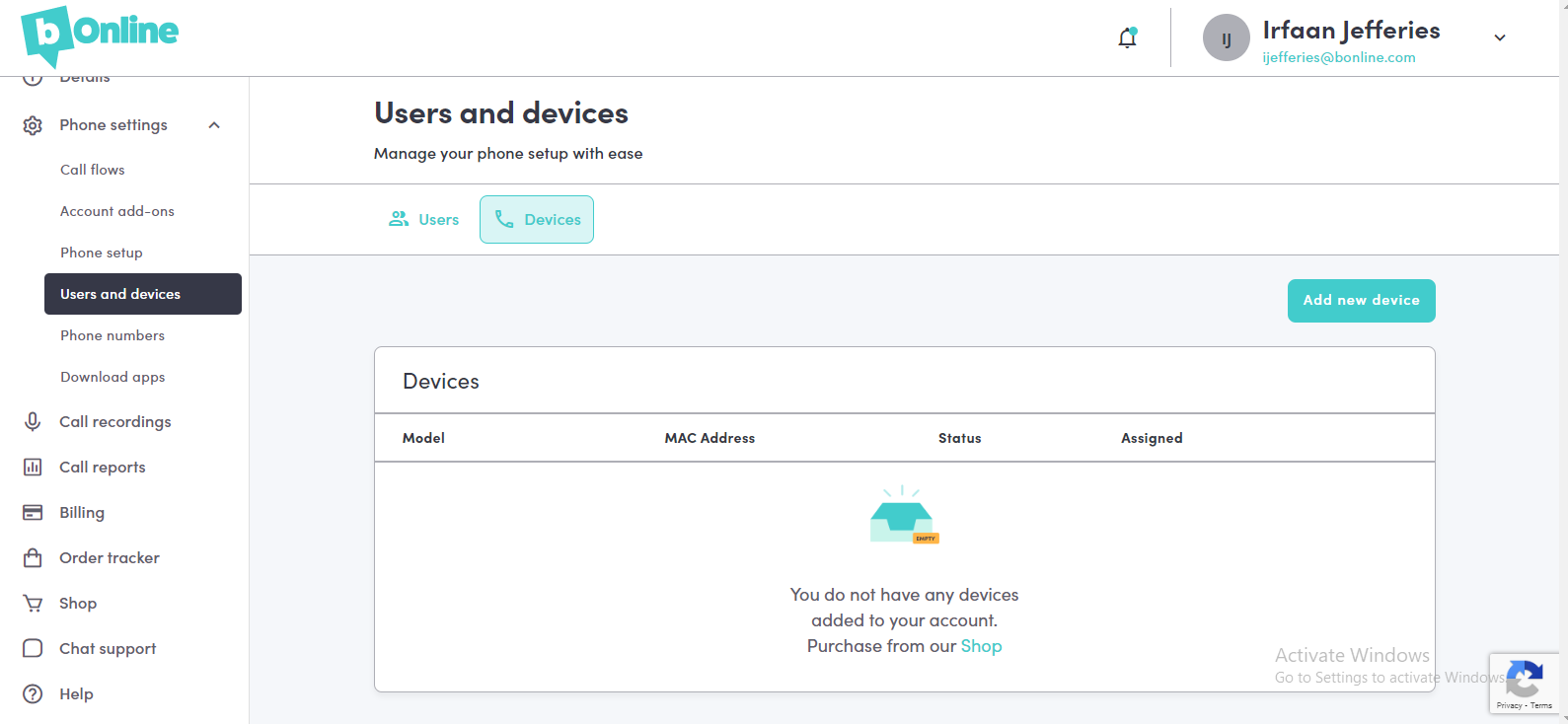
- Go to Phone Settings > Users and Devices.
- Navigate to the Devices section.
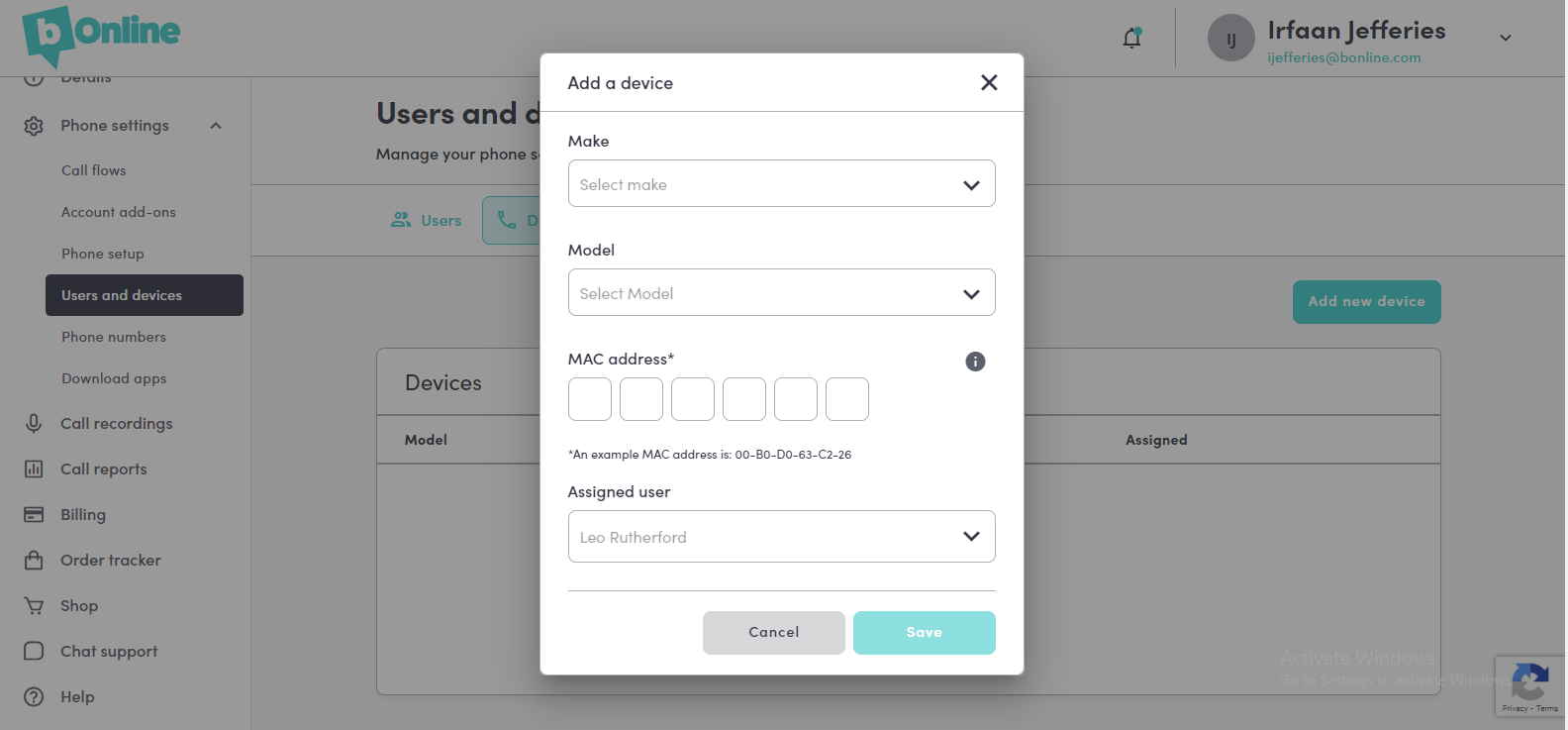
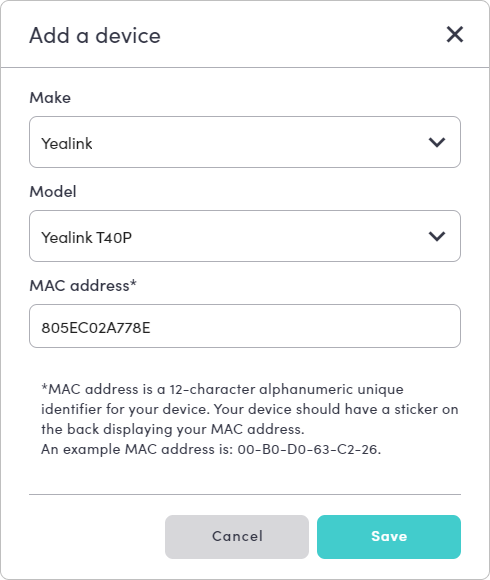
- Select Add a new device.
- Enter the Make, Model, and MAC address of the handset.
- Select Save.
Get Your Setup String
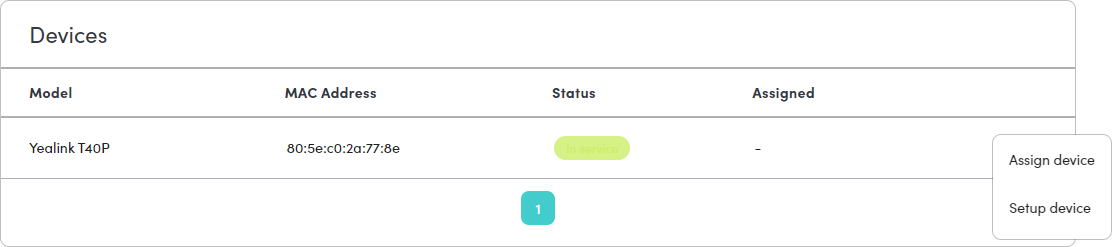
- In the Devices section, find the handset you added.
- Select the three-dot menu on the right of the device.
- Select Setup.
- Copy the setup string shown in the popup.
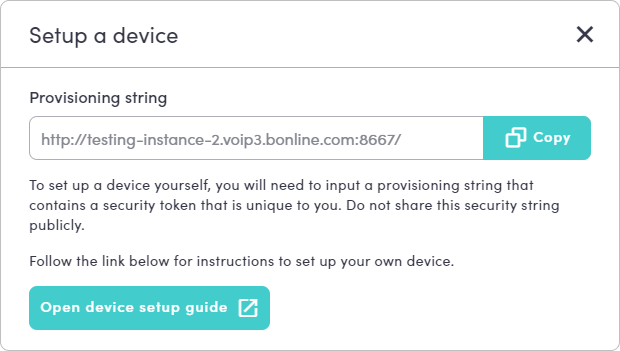
You now have everything you need to provision the handset. Follow the steps in the Yealink provisioning guide for VoIP 3.0 to complete the setup using the web interface.
Contact Us
We're always up for a chat! Live chat is available via the mybOnline sidebar or from the bottom-right corner of this page.
Other Contact Options
Reach the support team via WhatsApp for quick queries.
Log in to mybOnline and use the in-portal contact options.
Related Articles
Was this article helpful?
That’s Great!
Thank you for your feedback
Sorry! We couldn't be helpful
Thank you for your feedback
Feedback sent
We appreciate your effort and will try to fix the article