Call forwarding on the bOnline desktop app lets you redirect incoming calls to another number when you are away from your desk. This article explains how to set up and manage your call forwarding rules.
Please note: If your account uses a simple or advanced call flow that includes a call queue or multiple users, the forwarding rules set in the app will be overridden. The system will follow the designated call flow instead.Call Forwarding Rules
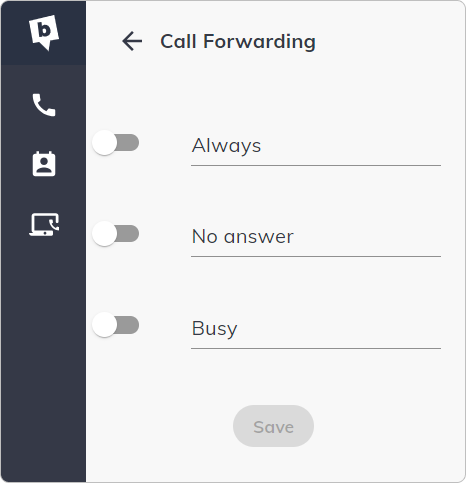
There are three forwarding rules available:
- Always — all incoming calls are forwarded immediately, regardless of your availability.
- No Answer — calls are forwarded when you do not answer within a set time.
- Busy — calls are forwarded when you are already on a call.
How to Set Up Call Forwarding
- Click Settings in the bottom-left of the screen.
- Select Call Forwarding.
- Choose the rule you want to enable: Always, No Answer, or Busy.
- Enter the number you want calls forwarded to.
- Toggle the forwarding rule on, then click Save.
Contact Us
We're always up for a chat! Live chat is available via the mybOnline sidebar or from the bottom-right corner of this page.
Note: This is the fastest way to reach the support team.
Other Contact Options
WhatsApp
Reach the support team via WhatsApp for quick queries.
mybOnline Portal
Log in to mybOnline and use the in-portal contact options.
Related Articles
Was this article helpful?
That’s Great!
Thank you for your feedback
Sorry! We couldn't be helpful
Thank you for your feedback
Feedback sent
We appreciate your effort and will try to fix the article