This article explains how to log in to the bOnline mobile app on your iOS or Android phone.
What You Need
- The email address linked to your bOnline account.
- Your 6-digit PIN, created in the MybOnline portal.
- The bOnline mobile app installed on your phone. See How to download the bOnline app.
How to Log In
- Open the bOnline app on your phone.
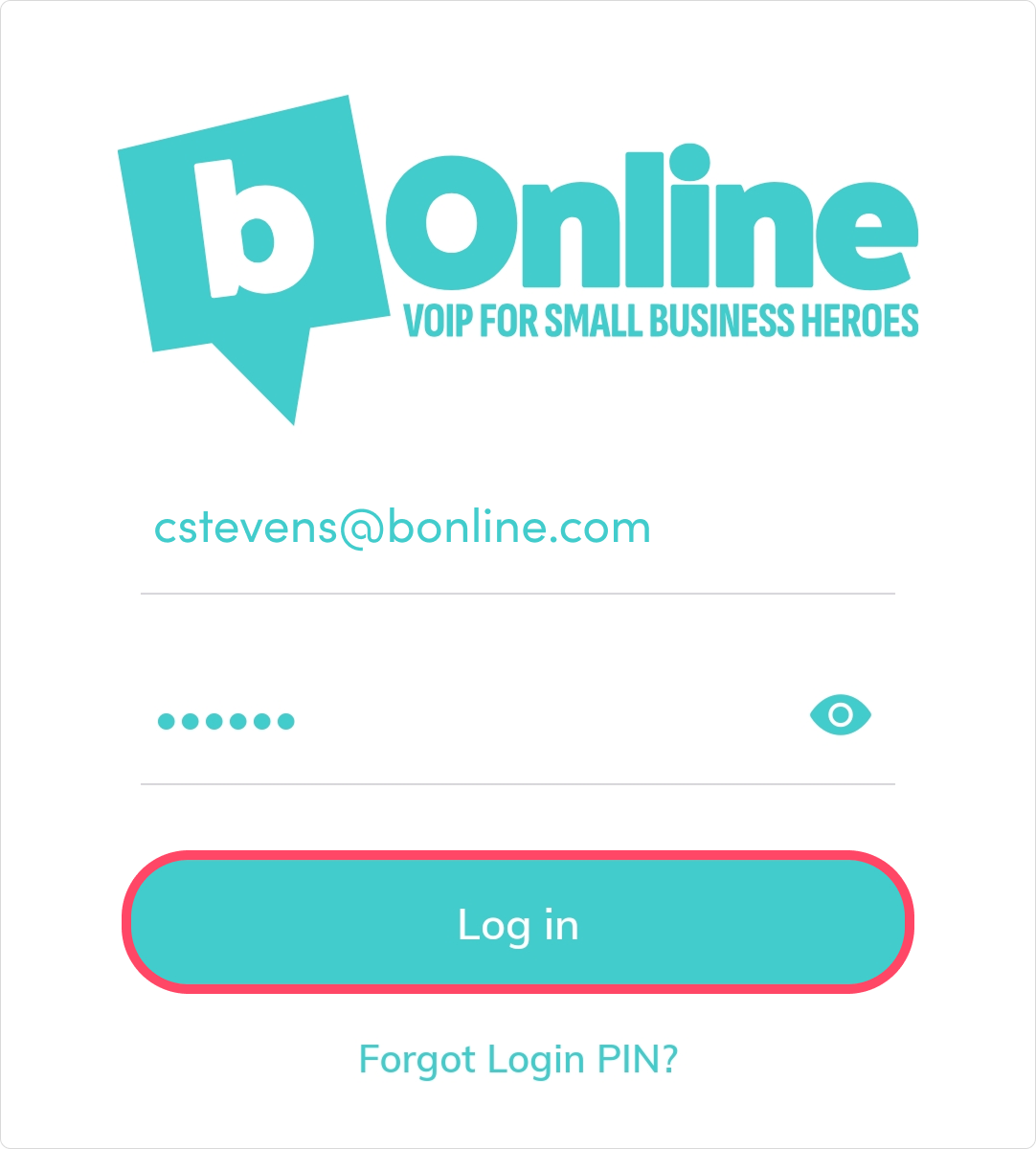
- Enter the email address linked to your bOnline account.
- Enter your 6-digit PIN.
- Tap Log In.
Once logged in, the app takes you to the home screen where you can make and receive calls straight away.
Logging in with Biometrics (Fingerprint or Face ID)
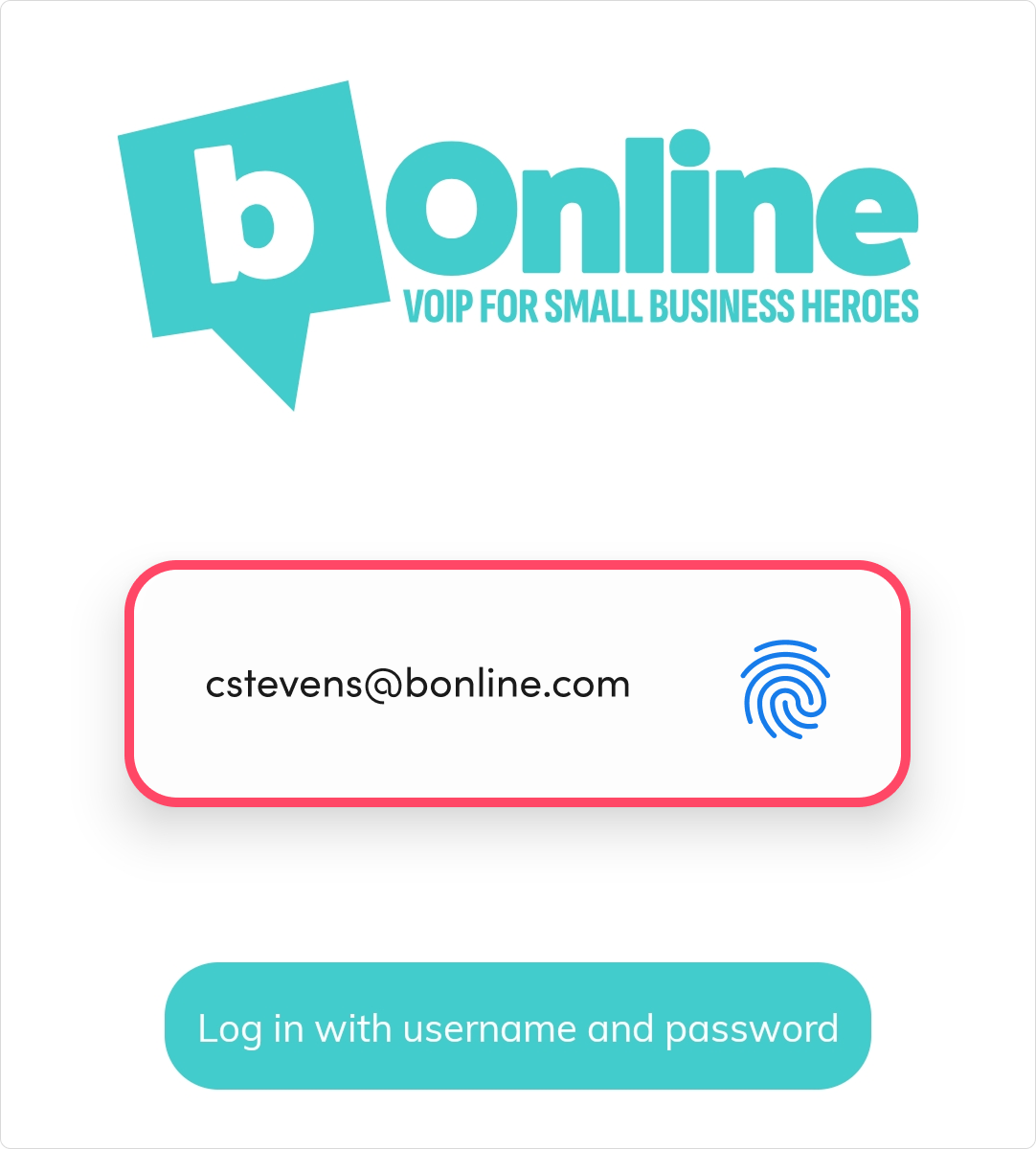
You can set up biometric login so you do not need to enter your email and PIN each time. The app will use your phone's fingerprint scanner or Face ID instead.
To turn on biometric login:
- Log in to the app with your email address and PIN.
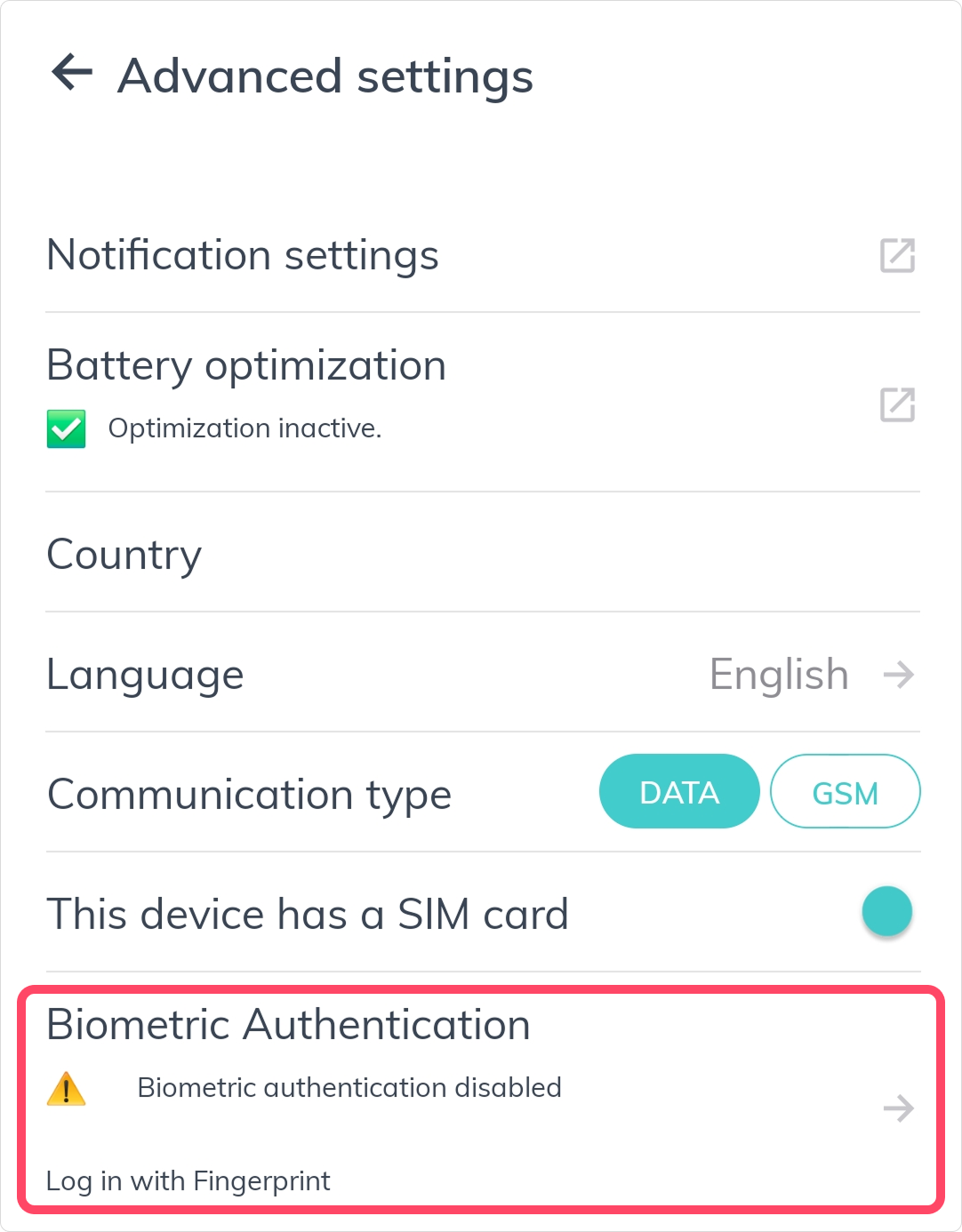
- Go to Advanced Settings in the app menu.
- Toggle on Biometric Authentication.
The next time you open the app, you will be prompted to use your fingerprint or Face ID instead of entering your details manually.
If the biometric toggle is not available, it means one of the following:
- Your phone does not support biometric authentication.
- Biometrics have not been set up on your device. You can set these up in your phone's settings and then return to the app.
Cannot Log In?
If you are having trouble logging in, check the following:
- Make sure you are using the email address linked to your bOnline account.
- Check your PIN is correct. If you have forgotten it, see Forgot your bOnline mobile app login PIN?
- Make sure your app is up to date. An outdated app can prevent you from logging in.
- If the app will not open at all, see Having issues launching the bOnline app?
Download the Latest Version
If your app is out of date, download the latest version below.
Was this article helpful?
That’s Great!
Thank you for your feedback
Sorry! We couldn't be helpful
Thank you for your feedback
Feedback sent
We appreciate your effort and will try to fix the article