Using AI Call Recording: Find, Play and Manage Your Calls

Modified on Thu, 9 Jul at 11:47 AM

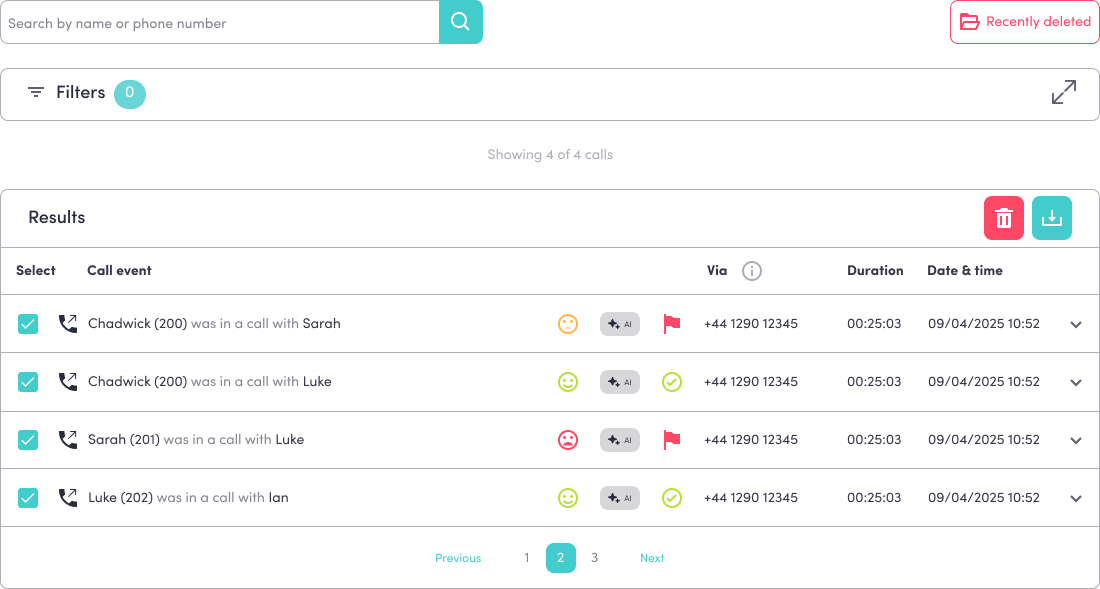
Once recording is switched on, all your calls live in Call history (under Phone settings in the left-hand menu). Each entry shows who the call was with, how it was routed, the duration, and the date and time.


Reading the list at a glance

Every call in the list carries quick AI markers:

  • Sentiment face — a colour-coded icon showing whether the call was positive, neutral, or negative.

  • AI tag — marks calls that have an AI summary and transcript ready to view.


Finding a call

  • Search Use the search bar at the top to search by name or phone number.

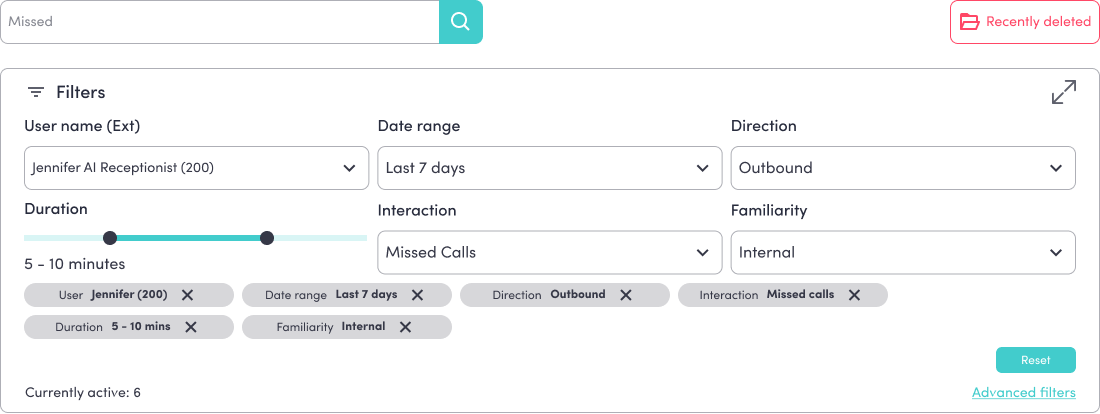
  • Filter your recordings Click Filters to narrow the list down by things like:

    • User name (Ext) — a specific person or extension

    • Date range — calls from a chosen period

    • Direction — inbound or outbound

    • Duration — by call length

    • Interaction — answered, missed, or other types

    • Familiarity — internal or external calls

  • Active filters appear as tags. Remove one by clicking the X on its tag, or click Reset to clear them all at once.


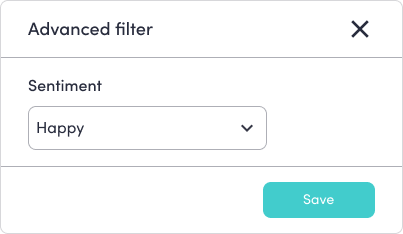
  • Open Advanced filters for Sentiment (positive, neutral, negative), Flags (first-time or repeat caller), and Dial menu (see the Dial Menu article).


Playing a recording

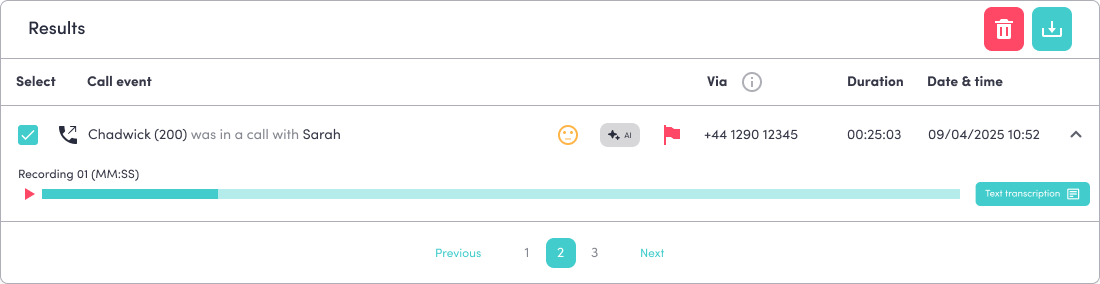
  • Click the dropdown arrow at the end of a call's row to expand it.

  • Press Play on the recording bar to listen right there in your browser.


Downloading recordings

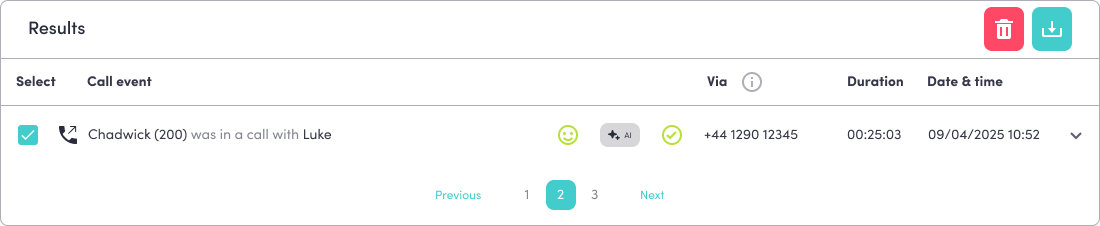
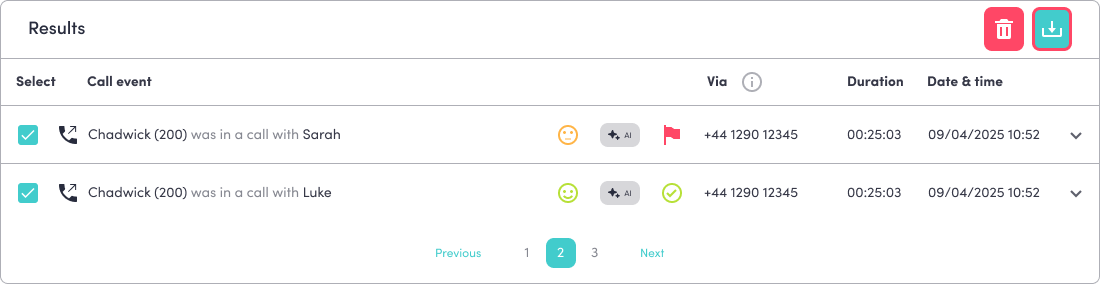
  • To download one call, tick its box, then click the download icon at the top of the results.

  • To download several, tick each box (or select multiple), then click the download icon.


Deleting and restoring

To delete:

  • Select the recordings you'd like to remove.

  • Click the delete (bin) icon at the top of the results.

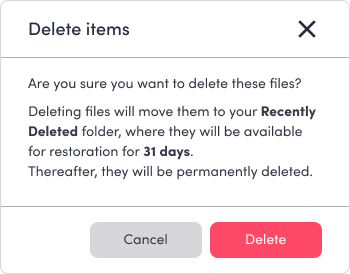
  • Confirm on the pop-up. Deleted items move to your Recently deleted folder, where they can be restored for 31 days before being permanently erased.


To restore:

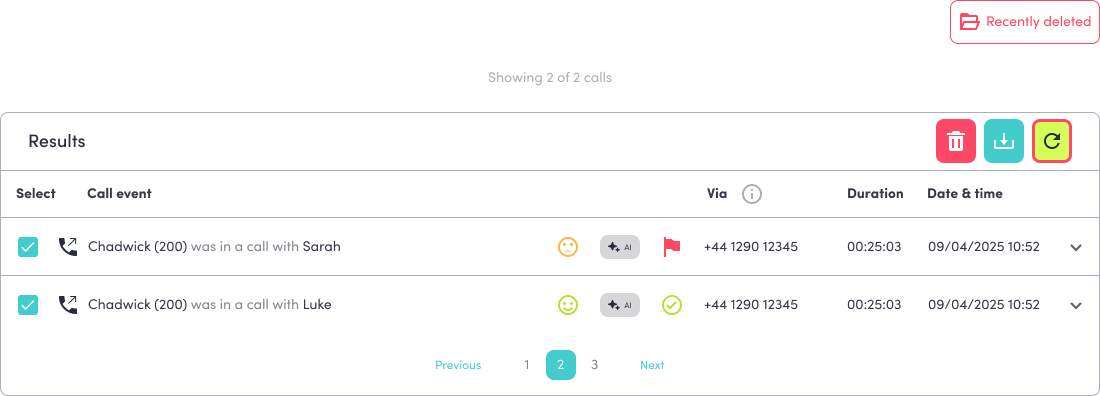
  • Click Recently deleted (top right).

  • Select the recordings you'd like to recover.

  • Restore them — they'll move back into your main list.


Was this article helpful?

That’s Great!

Thank you for your feedback

Sorry! We couldn't be helpful

Thank you for your feedback

Let us know how can we improve this article!

Select at least one of the reasons
CAPTCHA verification is required.

Feedback sent

We appreciate your effort and will try to fix the article