This article explains how to factory reset, connect, and provision the Grandstream HT-801-V2 ATA adaptor for bOnline's VoIP system.
Step 1: Factory reset the device
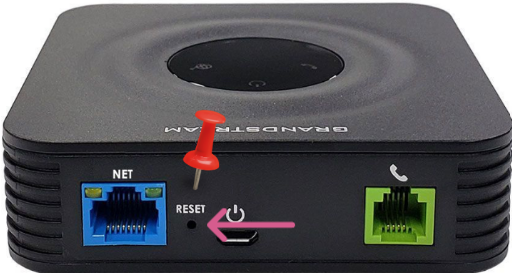
If the device has been used before, perform a factory reset by pressing and holding the reset button (pinhole on the back of the device) for 10 seconds using a paperclip or pin.
Step 2: Connect the device
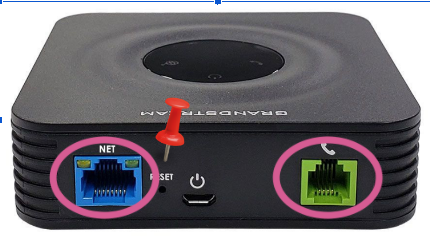
- Plug the Ethernet cable into the WAN port on the HT-801-V2 and connect the other end to your router.
- Connect an analog phone to the Phone port on the device.
- Connect the power supply.
Step 3: Find the IP address
- Pick up the analog phone connected to the device.
- Dial ***02.
- The device will read out its IP address. Note this down.
Your IP address will look something like: 192.168.1.100
Please note: If the device does not read out an IP address, the internet is not reaching the device. Check your Ethernet cable, router port, and broadband connection.Step 4: Log in to the web interface
- Open a web browser on a computer connected to the same network.
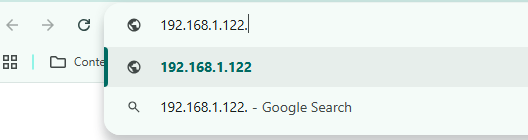
- Enter the IP address in the address bar.
- Log in with the username admin and the password admin.
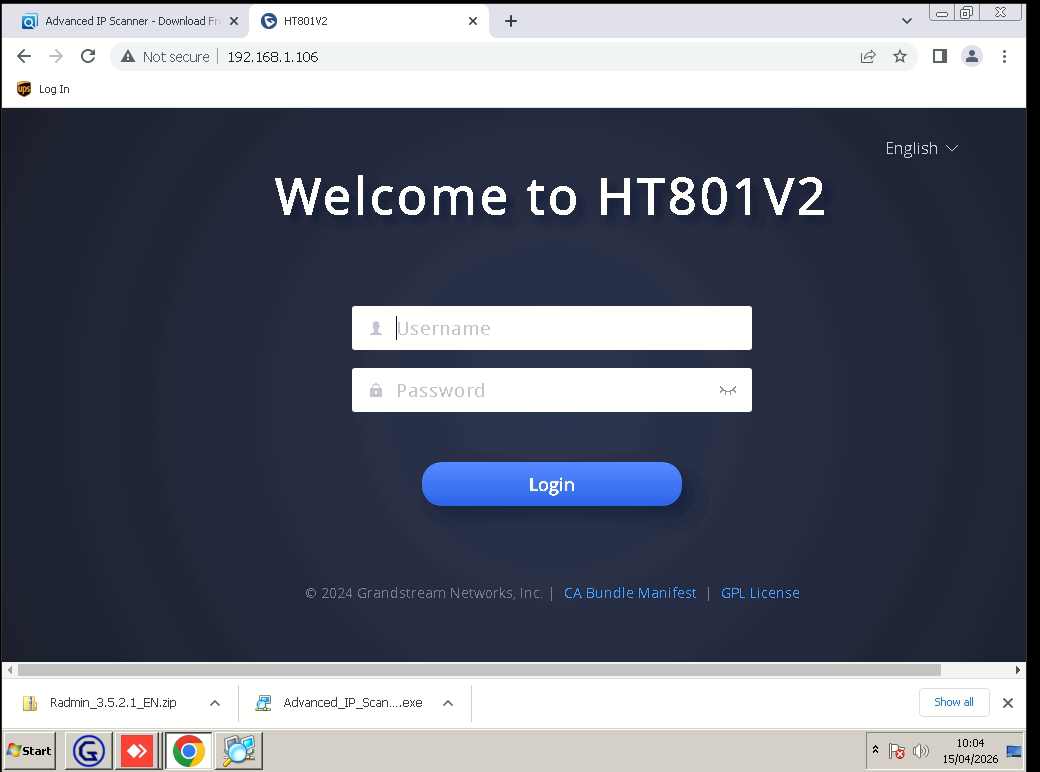
Please note: If admin/admin does not work, check the sticker on the back of the device for a randomly generated password. If the device was previously provisioned and the password has been changed, contact bOnline support through live chat for the admin password.Step 5: Enter the provisioning string
- Select the Advanced Settings tab in the top menu.
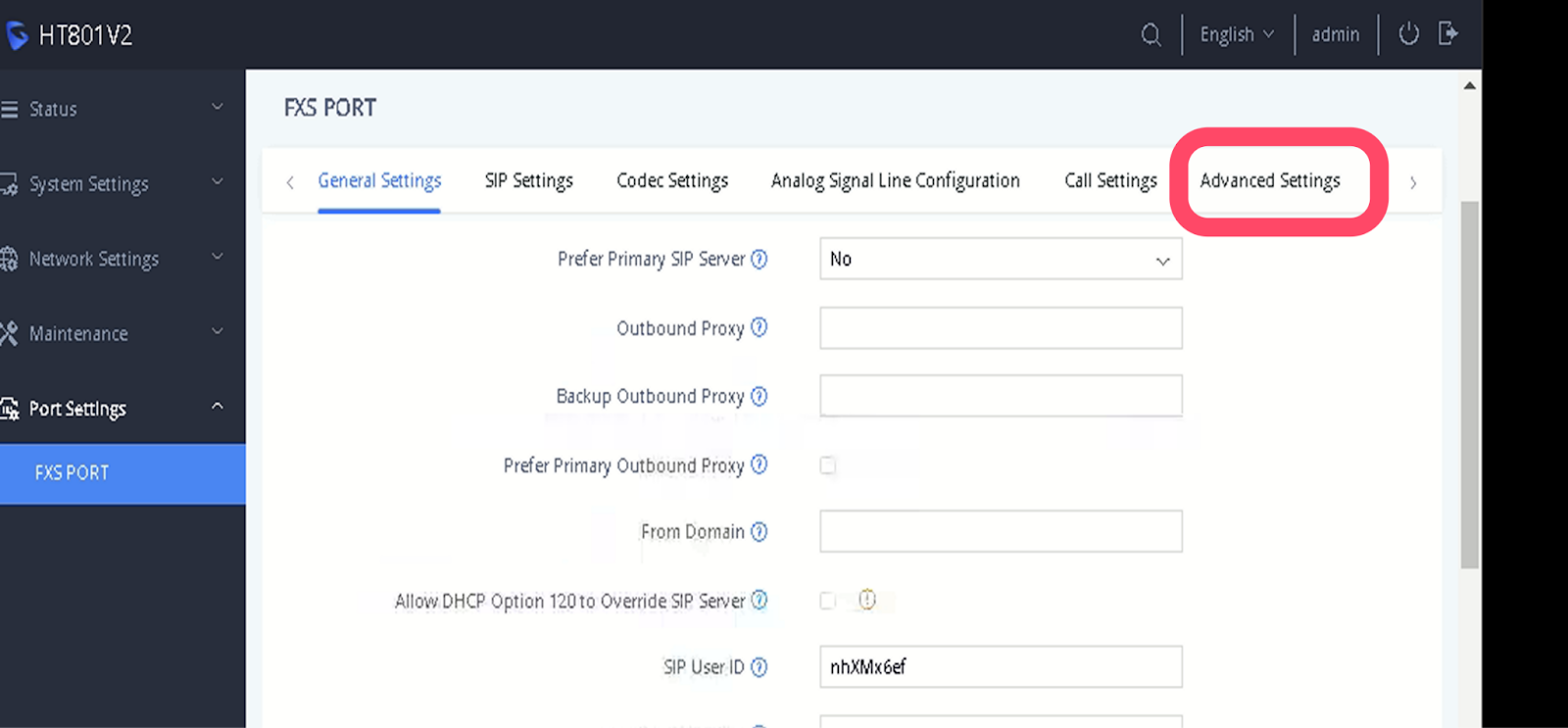
- Scroll down to the Firmware Upgrade and Provisioning section.
- Set Upgrade Via to HTTP.
- Copy the provisioning string from the MybOnline portal and remove the
https://from the start before pasting it into the Config Server Path field. - Select Save and Apply.
Please note: The Upgrade Via field already specifies the protocol, so the https:// prefix must be removed from the provisioning string. For example, if the portal gives you https://provisioning.example.com/path, enter provisioning.example.com/path into the Config Server Path field.Step 6: Activate the FXS port
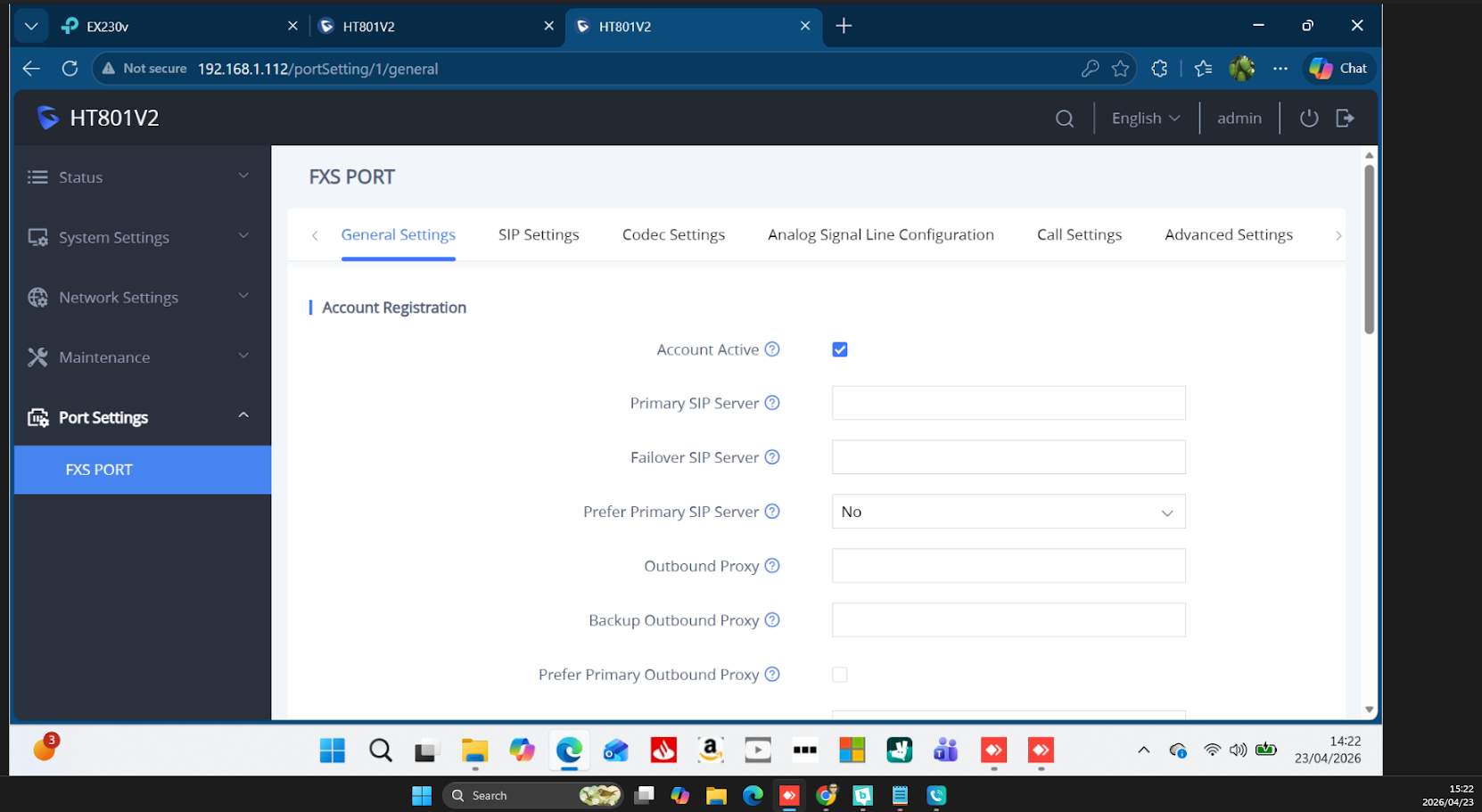
- Select Port Settings.
- Select the FXS Port tab.
- Under General Settings, tick Account Active.
- Select Save and Apply.
Step 7: Apply and reboot
- Select Apply at the bottom of the page.
- Select Reboot to apply the changes.
- The device will download its configuration and should be ready within 1 to 2 minutes.
Once the reboot is complete, the device should be provisioned and ready to use. If the device does not register, contact the bOnline support team through live chat.
Related articles
Was this article helpful?
That’s Great!
Thank you for your feedback
Sorry! We couldn't be helpful
Thank you for your feedback
Feedback sent
We appreciate your effort and will try to fix the article